

Host guide
Calendar Integrations
Connect the calendar you already use, and your Space Penguin listing stays in sync automatically — whenever your calendar is busy, that time can't be booked here.
Busy times on your calendar are blocked from booking automatically.
Set it up once — availability updates itself, no manual blocking.
We only see when you’re busy — never event names or details.

Setup guide
Google Calendar
Works with any Google Calendar — a dedicated room calendar or your own. Three steps and you're synced.
Copy the sharing address
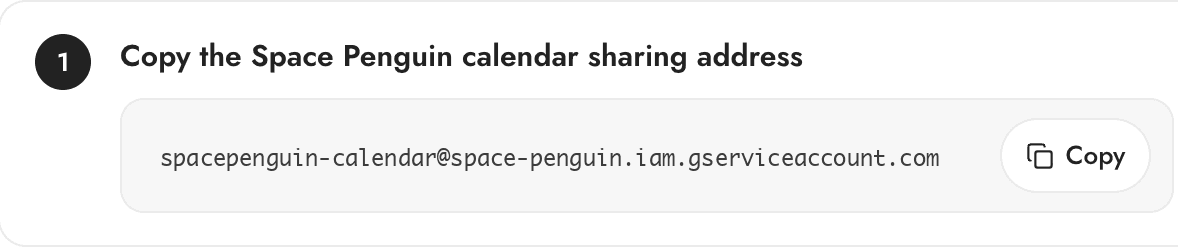
Open your listing’s Availability page, choose the Google Calendar tab and copy the Space Penguin calendar sharing address.
Share your calendar
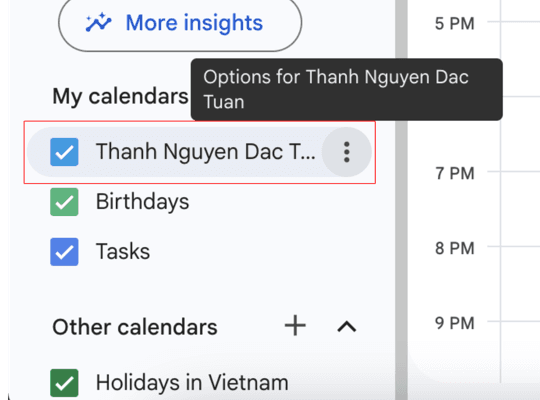
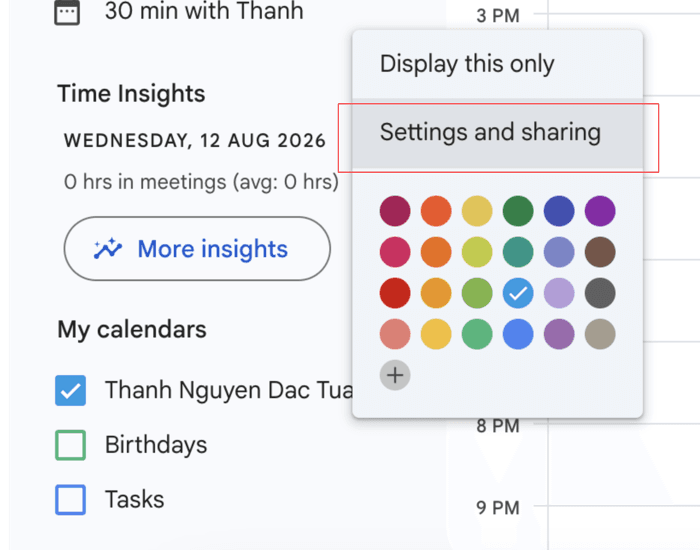
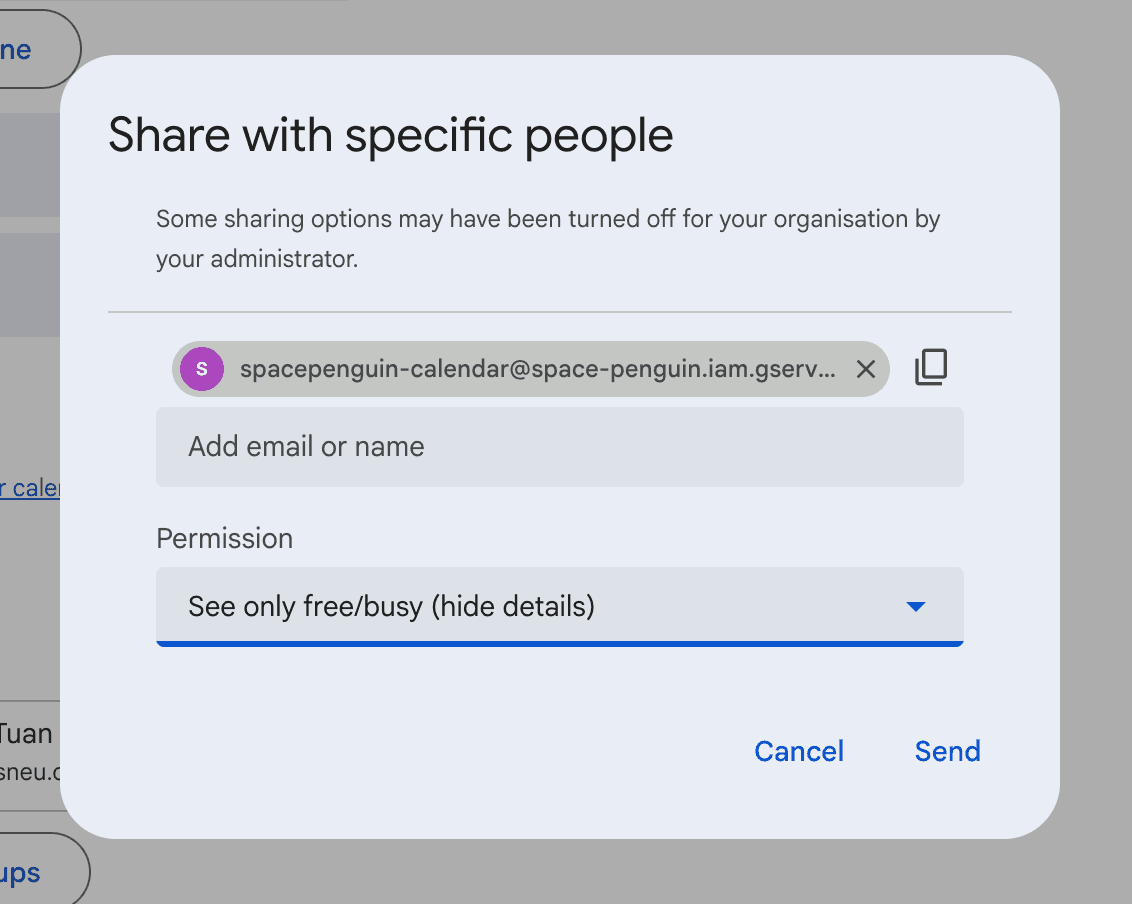
In Google Calendar under My calendars, hover the calendar for this room or listing and click the ⋮ menu, then choose Settings and sharing. Under “Share with specific people or groups”, add the copied address, set permission to “See only free/busy (hide details)” and click Send.
Paste the Calendar ID
On the same settings page, scroll to “Integrate calendar” and copy the Calendar ID (it looks like abc123@group.calendar.google.com or a Gmail address). Paste it into Space Penguin and press Connect — busy times start blocking bookings straight away.

Next step
Ready to set it up?
Open a listing's Availability page to connect Google Calendar or OfficeRnD — or do it when you create a new space.
Still deciding? Talk to a real person.
Our Australian-based support team knows the local market and can help you find the right space, list yours, or set up a virtual address.